

Experiment 1
Installation and Setup of Cloudera Hadoop Environment using VirtualBox
Aim: To install Oracle VirtualBox and set up the Cloudera QuickStart Virtual Machine in order to create a local Big Data (Hadoop) environment for executing Hadoop ecosystem commands.
Resources
BDA Lab Manual
View Document
Crowdsourced Journal Notes
Optional Reference
VM Setup
Installation and setup guide for VirtualBox and Cloudera
How to Take Screenshots
To take a screenshot, pause the VM: Machine → Pause or Host + P (Host = Right Ctrl unless changed in preferences)
Verify Hadoop is Running
Check HDFS
In the VM terminal, run:
hadoop fs -ls /Expected output (check the right side of each line):
/benchmarks
/hbase
/solr
/tmp
/user
/var
If the output is similar that means its working properly.
Perform
Visit the following link using Cloudera VM Browser by typing in the address bar ...or copy the code below directly into the Cloudera VM terminal:
Run the following commands in your VM terminal:
# Step 1: Verify HDFS is running
hadoop fs -ls /

# Step 2: Basic HDFS operations (Local to HDFS)
hadoop fs -mkdir -p /user/cloudera/BDA_Program

mkdir -p ~/BDA_C
cd ~/BDA_C

echo "hadoop programming" > bda_exp1.txt
cat bda_exp1.txt

hadoop fs -copyFromLocal bda_exp1.txt /user/cloudera/BDA_Program/

hadoop fs -ls /user/cloudera/BDA_Program/
hadoop fs -cat /user/cloudera/BDA_Program/bda_exp1.txt

hdfs dfs -get /user/cloudera/BDA_Program/bda_exp1.txt /home/cloudera
ls /home/cloudera

# Step 3: WordCount MapReduce program
cd ~

hdfs dfs -mkdir -p /user/cloudera/wordcount/input

echo -e "Hello I am GeeksforGeeks\nHello I am an Intern" > wc_input.txt

hdfs dfs -put wc_input.txt /user/cloudera/wordcount/input/

hdfs dfs -ls /user/cloudera/wordcount/input
hdfs dfs -cat /user/cloudera/wordcount/input/wc_input.txt

hadoop jar /usr/lib/hadoop-mapreduce/hadoop-mapreduce-examples.jar wordcount /user/cloudera/wordcount/input /user/cloudera/wordcount/output

hdfs dfs -ls /user/cloudera/wordcount/output
hdfs dfs -cat /user/cloudera/wordcount/output/part-r-00000

hdfs dfs -copyToLocal /user/cloudera/wordcount/output/part-r-00000 ~/wc_result.txt
cat ~/wc_result.txt
Inside the Cloudera VM
- Open Browser inside the VM.
- Go to:
http://localhost:8888 - Login:
- Username:
cloudera - Password:
cloudera
- Username:
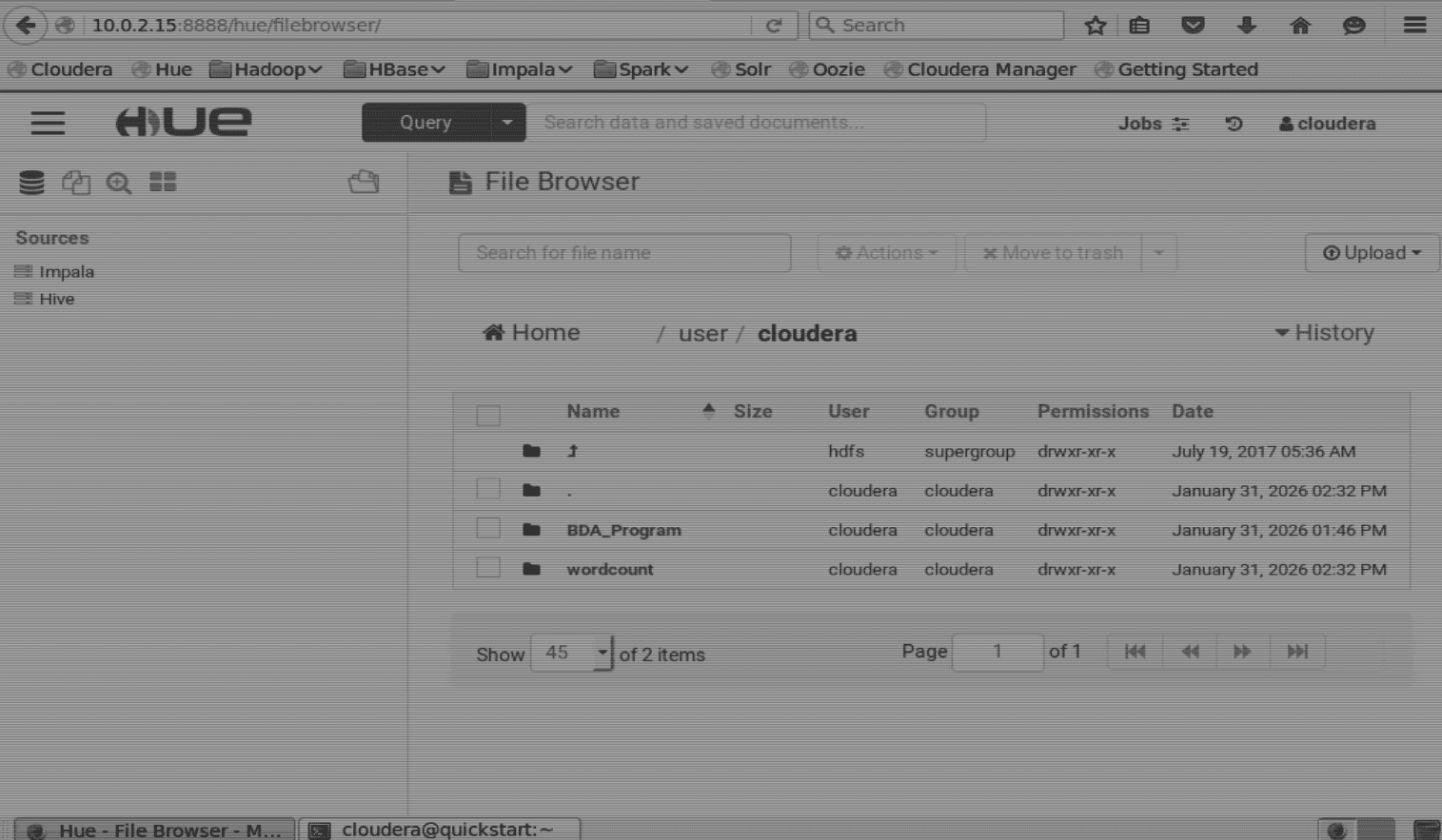
You’ll land on the Hue dashboard.
In Hue top-left, click: Menu (≡) → Files → HDFS
Rerunning the experiment - Cleanup Previous Data
(Not required if you are running the experiment for the first time)
If you need to perform the experiment again, you can clean the previous data by running the following commands in the terminal:
# Clean previous HDFS data
hdfs dfs -rm -r -f /user/cloudera/BDA_Program
hdfs dfs -rm -r -f /user/cloudera/wordcount

# Clean previous local files
rm -rf ~/BDA_C
rm -f ~/wc_input.txt
rm -f ~/wc_result.txt
rm -f ~/bda_exp1.txt
rm -f /home/cloudera/bda_exp1.txt

clear
And then perform the experiment again.